How to Move WhatsApp Between iPhone and Samsung Without Losing Chats
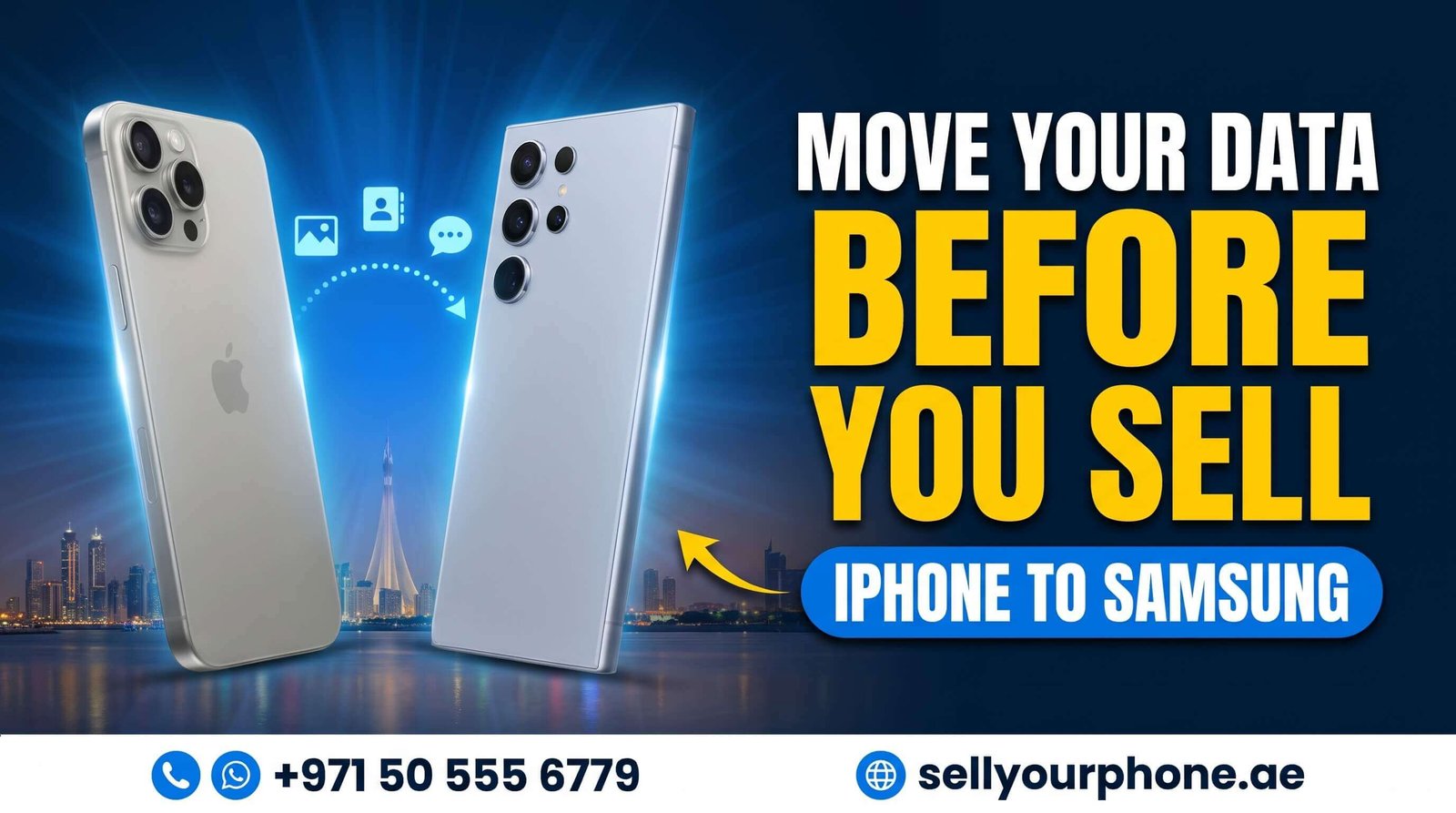
To move WhatsApp between an iPhone and a Samsung, you must run the transfer while the new phone is still in its setup screens. Once you finish setting the new phone up, the official transfer disappears. Back up first, keep the old phone until everything checks out, and only then sell it.
Finished the switch and ready to sell the old phone? Get a free quote for aniPhone or a Samsung, or send the details onWhatsApp. We collect free anywhere in Dubai and pay on the spot.
Years of chats, voice notes from family back home, photos nobody thought to save anywhere else. For most people in Dubai, WhatsApp is the phone. Losing it in a switch is worse than losing the phone itself.
The good news is that WhatsApp moves between iPhone and Samsung properly these days, in both directions, for free. The bad news is that there is one timing rule, and almost nobody hears about it until it is too late.
Key Takeaways
- Run the transfer during the new phone's setup. After setup, the official option is gone.
- iPhone to Samsung needs a cable. Samsung to iPhone needs Wi-Fi.
- Call history never transfers, in either direction.
- Already set the new phone up? Smart Switch can still do it on a Samsung.
- Do not wipe the old phone until the new one has worked for a week or two.
The One Mistake That Loses Your Chats
Both official transfers only run while the new phone is in its first-time setup screens. Not afterwards.
So the order that goes wrong looks like this: you unbox the new phone, set it up straight away because you are excited, sign into your accounts, install WhatsApp from the store, and then go looking for the transfer option. It is not there. Your chats are still on the old phone, and the only way back is to factory reset the new one and start again.
The order that works:
- Back up WhatsApp on the old phone, as a safety net.
- Charge both phones to at least 80%.
- Start the new phone's setup and stop when it asks about transferring data.
- Run the WhatsApp transfer from that screen.
- Finish the setup only after the transfer is done.
If you have already set the new phone up, skip to "What If Your New Phone Is Already Set Up?" below. There is still a way out, at least on Samsung.
How Do You Move WhatsApp From iPhone to Samsung?
This one runs over a cable, so have the right one ready before you start.
What you need
Detail
A cable
Lightning to USB-C for iPhone 14 and earlier. USB-C to USB-C for iPhone 15 and newer
A new or reset Samsung
The transfer only runs during setup
The same number on both phones
Both phones at 80% or more
WhatsApp updated on both
Run the store update before you start
Before you begin, turn off iMessage and FaceTime on the iPhone, in Settings > Messages and Settings > FaceTime. If your iPhone is managed by a company profile, remove it under Settings > General > VPN & Device Management first, or the transfer will fail.
- On the iPhone, open WhatsApp, then Settings > Chats > Transfer Chats to Android, and tap Start.
- On the Samsung, go through setup until it offers to restore your apps and data.
- Open WhatsApp on the Samsung when prompted. A QR code appears.
- Scan that QR code with the iPhone.
- Connect the two phones with the cable, then tap Start Transfer on the iPhone.
- Keep both screens on and WhatsApp open until it finishes. A large chat history with a lot of media takes a while.
- Finish WhatsApp setup on the Samsung using the same phone number.
How Do You Move WhatsApp From Samsung to iPhone?
Going the other way uses Apple's Move to iOS app, and it runs over Wi-Fi rather than a cable.
What you need
Detail
Android 5 or later
With WhatsApp 2.22.7.74 or newer
iOS 15.5 or later
With WhatsApp 2.22.10.70 or newer
A new or reset iPhone
Again, setup screens only
Both phones on the same Wi-Fi
And both plugged in
The same number on both phones
- Install Move to iOS on the Samsung from the Play Store.
- Start the iPhone setup. Choose Set Up Without Another Device, then on the Transfer Your Apps & Data screen tap From Android. A code appears.
- Enter that code on the Samsung and continue.
- Select WhatsApp in the list on the Samsung and tap Start.
- Wait for Move to iOS to finish, then install WhatsApp on the iPhone and log in with the same number.
What Does Not Transfer?
Most of what matters moves. A few things never do, in either direction.
Moves across
Does not move
Individual and group chats, with history
Call history
Photos, videos, voice notes and documents
Payment messages and transaction history
Your profile photo, name and settings
Broadcast list settings
If your call log matters to you, take screenshots before you switch. There is no method that moves it.
What If Your New Phone Is Already Set Up?
You have two options, and one is far less painful than the other.
- Moving to a Samsung: use Samsung Smart Switch over a cable. It can move WhatsApp data to a Samsung that is already configured, so you do not have to wipe anything. This is the easy way out.
- Moving to an iPhone: there is no equivalent. The only official route is to factory reset the iPhone and run Move to iOS during setup. Back up anything already on it first.
For the full picture on moving everything else, not just WhatsApp, see our guide ontransferring your data from iPhone to Samsung.
Common Errors and How to Fix Them
Problem
Fix
QR scan fails or the connection drops
Check the cable is the right type for your iPhone and fully seated. Restart both phones and begin again from the Samsung's setup screen
Transfer stops partway
Turn off auto-lock on both phones and keep both screens awake until it finishes
Photos and videos are missing
Auto-download was off on the old phone, or the new phone ran out of storage. Free up space and run it again
The transfer option is not in WhatsApp
Update WhatsApp on the old phone. If it still does not appear, reinstall WhatsApp and restore your latest backup, then try again
WhatsApp Business will not transfer
The QR method often fails for Business accounts. Use a cable with Samsung Smart Switch instead
When Should You Back Up and Wipe the Old Phone?
Back up before you transfer. Wipe only after the new phone has earned your trust.
Take a normal WhatsApp backup first, to iCloud on an iPhone or Google Drive on a Samsung. That is separate from the transfer and it is your safety net if something goes wrong halfway.
Then give the new phone a week or two of real use. Open old chats, check that the voice notes play and the photos are there. Only when you are sure should you erase the old phone, because once it is wiped there is nothing to go back to.
When you are ready, ourchecklist before selling your phone in Dubai covers every step, and our guide on removing your Samsung account handles the part that stops most sales at the door.
Selling the Old Phone
Once your chats are safely across and the new phone is working, the old one is just money sitting in a drawer.
- Get a free quote for youriPhone orSamsung, or message the model and condition onWhatsApp.
- Prepare it using the checklist above. Sign out, turn off Find My or Find My Mobile, then factory reset.
- Book a free pickup anywhere in Dubai. We check the phone with you and pay cash or bank transfer on the spot.
Wondering what your model is worth? See what aniPhone 13 or a Galaxy Z Fold 6 sells for right now, or read how tosell your phone in Dubai safely and avoid scams.
Frequently Asked Questions
Can I transfer WhatsApp from iPhone to Samsung?
Yes, and it is free. WhatsApp has an official transfer built in. The catch is that your Samsung must be brand new or factory reset, because the transfer only runs during the new phone's setup. You also need a cable between the two phones and the same number on both.
Do I need a cable to move WhatsApp from iPhone to Samsung?
Yes. The iPhone to Android transfer runs over a cable, not Wi-Fi. Use a Lightning to USB-C cable for an iPhone 14 or earlier, or USB-C to USB-C for an iPhone 15 or newer. The Samsung to iPhone transfer is different and uses Wi-Fi instead.
What if I already set up my new phone?
The official transfer is gone, because it only runs during setup. You have two choices: factory reset the new phone and start again, or use Samsung Smart Switch over a cable, which can move WhatsApp data to an already-configured Samsung.
What does not transfer with WhatsApp?
Call history, payment messages and transaction history, and broadcast list settings do not move in either direction. Your chats, groups, photos, videos, voice notes and documents do.
How do I move WhatsApp from Samsung to iPhone?
Use Apple's Move to iOS app on the Samsung before you set up the iPhone. You need Android 5 or later, iOS 15.5 or later, both phones charging and on the same Wi-Fi, and the same number on both. WhatsApp on the Samsung signs out when the transfer starts.
Should I back up WhatsApp before selling my old phone?
Yes, and keep that backup until the new phone has worked for a week or two. Once you erase the old phone you cannot get anything back from it. Back up to iCloud on an iPhone or Google Drive on a Samsung as a safety net, separate from the transfer itself.
Why did my photos and videos not transfer?
Usually one of two reasons. Auto-download was switched off on the old phone, so the media was never on the device. Or the new phone ran out of storage during the transfer and skipped files. Check free space and run it again.
Chats Moved? Now Sell the Old Phone
Get a free quote for youriPhone orSamsung, or send the details onWhatsApp. We collect from anywhere in Dubai, check the phone in front of you and pay before we leave.